

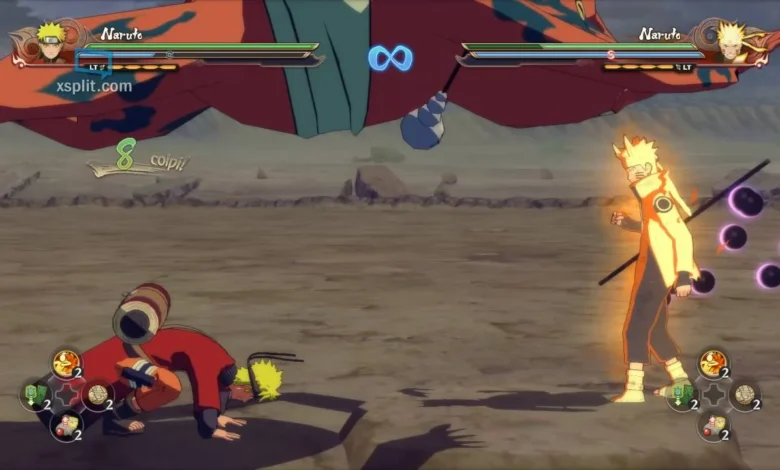
Understanding NSUNS4 and Game Modifications
How To Rest Nsuns4 in the Default Delete Mods? Naruto Shippuden: Ultimate Ninja Storm 4 (NSUNS4) is one of the most popular anime fighting games ever released, featuring stunning visuals, fast-paced battles, and a massive roster of characters. Over time, many players install mods to enhance graphics, add new characters, or customize the experience.
However, sometimes these mods can break the game, cause performance issues, or prevent the game from starting. When that happens, players often need to reset NSUNS4 to its default settings and delete mods completely.
If you’ve been struggling with mod-related errors or simply want to restore the original version of NSUNS4, this guide will walk you through the safe and complete reset process step by step.
Why You Might Need to Reset NSUNS4
Before diving into the process, it’s essential to understand why resetting NSUNS4 might be necessary. Some common reasons include:
-
Game not launching after installing incompatible mods.
-
Graphical glitches or broken textures appearing during battles.
-
Missing or corrupted files after manual mod installations.
-
Multiplayer connection errors caused by custom files.
-
Performance drops or crashes after patch updates.
Resetting the game helps remove all external content, returning NSUNS4 to its original factory state. This ensures smoother gameplay and prevents conflicts with official updates or online features.
Step-by-Step Guide to Reset NSUNS4 and Delete Mods
Follow these steps carefully to restore NSUNS4 to default and remove all mod files safely:
Step 1: Backup Your Save Data
Before deleting anything, back up your game saves to avoid losing your progress.
-
Navigate to:
C:\Users\<YourUsername>\AppData\Roaming\Steam\CODEX\349040(or similar folder depending on your version) -
Copy the folder to your desktop or another safe location.
Step 2: Locate the Game Installation Folder
The installation path depends on your platform:
-
For Steam:
-
Open Steam Library → Right-click Naruto Shippuden: Ultimate Ninja Storm 4 → Select Properties → Click Installed Files → Choose Browse Local Files.
-
-
For Non-Steam versions, locate where you originally installed NSUNS4 (e.g.,
C:\Games\NSUNS4).
Step 3: Delete All Mod Files
Once inside the NSUNS4 directory, identify and delete the following folders if they exist:
-
Data_win32(contains modded character and texture files) -
Sound,Movie, or any folder with modified.cpkor.pakfiles -
Any folders named “Mod”, “ReShade”, “Ultimate Mod Pack”, etc.
If you used a mod manager like Storm 4 Mod Loader, open it and uninstall all mods before deleting residual files manually.
Step 4: Verify Integrity of Game Files (Steam Users)
To restore the original files automatically:
-
Go to Steam Library → Right-click NSUNS4 → Properties.
-
Click Installed Files → Verify integrity of game files.
-
Steam will automatically scan for missing or altered files and re-download them.
This process resets NSUNS4 to its default, unmodded version.
Step 5: Reinstall if Problems Persist
If the game still doesn’t function correctly, uninstall it completely and reinstall:
-
Uninstall via Steam or Windows Control Panel.
-
Manually delete any leftover folders in
C:\Program Files (x86)\Steam\steamapps\common\. -
Reinstall NSUNS4 cleanly.
After reinstalling, copy your saved game data back into the original directory if needed.
How to Avoid Mod-Related Issues in the Future
While mods can make NSUNS4 more fun, they can also be risky if not installed properly. Here are a few safety tips to keep your game stable:
-
✅ Always backup your game files before installing any mod.
-
✅ Only download mods from trusted sites like NexusMods or ModDB.
-
✅ Avoid mixing multiple mods that alter the same character or texture files.
-
✅ Check for version compatibility—many mods only work with specific NSUNS4 builds.
-
✅ Use a mod manager for easier installation and removal.
-
✅ Don’t use mods in online multiplayer, as it may result in bans or desynchronization errors.
Following these guidelines helps you enjoy a modded experience without breaking the core game.
Common Errors After Deleting Mods (and Fixes)
Even after removing mods, you might encounter certain issues. Here’s how to fix them quickly:
| Error | Cause | Solution |
|---|---|---|
| Game won’t launch | Leftover mod files or corrupt cache | Delete AppData\Roaming\NSUNS4 and verify game files |
| Missing textures | Partial mod removal | Reinstall base game or verify file integrity |
| Sound missing | Mod replaced audio files | Delete Sound folder and let Steam re-download it |
| FPS drop | Config conflict | Delete Config.ini file to reset graphics settings |
| Online error | Modified files detected | Clean reinstall to restore online compatibility |
These fixes ensure your NSUNS4 runs like new, free of mod-related problems.
Final Verdict: Resetting NSUNS4 the Right Way
Resetting Naruto Shippuden: Ultimate Ninja Storm 4 to its default state and deleting mods can completely revive a broken or laggy installation. By following the steps above — backing up saves, deleting mod files, and verifying integrity — you can safely return the game to its original performance and stability.
Mods can enhance gameplay, but only if handled carefully. Always keep backups and use legitimate tools to avoid future corruption. With a clean reset, you can enjoy NSUNS4’s incredible battles and cinematic visuals exactly as the developers intended.